Tuesday, March 10, 2015
Make your emails stand out in Inbox
 As we announced last week, Inbox is a whole new take on, well, the inbox. It’s built by the Gmail team, but it’s not Gmail—it’s a new product designed to help users succeed in today’s world of email overload and multiple devices. At the same time, Inbox can also help you as a sender by offering new tools to make your emails more interactive!
Specifically, you can now take advantage of a new feature called Highlights.
Exactly like it sounds, Highlights “highlight” or surface key information and actions from an email and display them as easy-to-see chips in the inbox. For example, if you’re an airline that sends flight confirmation emails, Highlights can surface the “Check-in for your flight” action and display live flight status information for recipients right in the user’s main list. The same can apply if you send customers hotel reservations, event details, event invitations, restaurant reservations, purchases, or other tickets. Highlights help ensure that your recipients see your messages and the important details at a glance.
To take advantage of Highlights, you can mark up your email messages to specify which details you want surfaced for your customers. This will make it possible for not only Inbox, but also Gmail, Google Now, Google Search, and Maps to interact more easily with your messages and give your recipients the best possible experience across Android, iOS and the web.
As an example, the following JSON-LD markup can be used by restaurants to send reservation confirmations to their users/customers:
<script type="application/ld+json">
{
  "@context": "http://schema.org",
  "@type": "FoodEstablishmentReservation",
  "reservationNumber": "WTA1EK",
  "reservationStatus": "http://schema.org/Confirmed",
  . . . information about dining customer . . .
  "reservationFor": {
    "@type": "FoodEstablishment",
    "name": "Charlie’s Cafe",
    "address": {
      "@type": "PostalAddress",
      "streetAddress": "1600 Amphitheatre Parkway",
      "addressLocality": "Mountain View",
      "addressRegion": "CA",
      "postalCode": "94043",
      "addressCountry": "United States"
    },
    "telephone": "+1 650 253 0000"
  },
  "startTime": "2015-01-01T19:30:00-07:00",
  "partySize": "2"
}
</script>
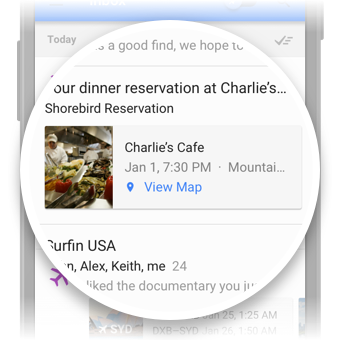
When your confirmation is received, users will see a convenient Highlight with the pertinents at the top of their Inbox, then can open the message to obtain the full details of their reservation as shown above.
Getting started is simple: read about email markup, check out more markup examples, then register at developers.google.com/gmail/markup and follow the instructions from there!
by Shalini Agarwal, Product Management, Inbox by Gmail

Friday, February 27, 2015
Top researchers views on gaming in business education
Link to article (By Jason Stitt and Les Chappell)
"If the last video game you played was Pac-Man, you might have missed the advances that turned games into immersive training tools for skilled professionals and leaders."
Three University of Wisconsin-Madison professors (Constance Steinkuehler, Kurt Squire and James Paul Gee), among the top researchers in learning through game-playing, explains the advantages of games over traditional teaching tools in this short article with a lot of interesting comments from the public (including mine ).
Also, check out this video about "How Games are Reshaping Business" (97 minutes) by these three professors mentioned above, and this article : Video games and the future of learning (By Kurt R. Squire, Richard Halverson and James P. Gee), which really awakens our minds on how games can play a huge impact in making the e-learning environment more immersive, interactive, interesting, collaborative and enjoyable.
Interesting games mentioned in this article include Age of Mythology, Full Spectrum Warrior, Biohazard, and Civilization III. Lets play to learn !
Thursday, February 26, 2015
Blended Flipped Learning Case Studies in Malaysian Higher Education Institutions

Here we go:
The International Medical University (IMU) also contributed a Chapter (Chapter 15: Page 255 - 274) exploring how large lectures are being flipped.
Have fun discovering how Malaysian HEIs are transforming their learning and teaching using various tools and methods to spice up students learning experiences :)
Monday, February 16, 2015
How to Get a Payoneer card in Pakistan
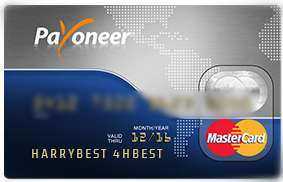
Step 1: Go to Its official website www.payoneer.com or click on Referral Links to get 25$ for Free and click on Signup the you got two option Apply for Individual or Partner, select what you want and then you got a registration form look like this. My Referral Link: http://share.payoneer-affiliates.com/a/clk/1NFwH4

Step 2. Click on Start Here button and give your Cardholder Details: Look like this:

Step 3: Now jump to step 2 and give your account information:

Step 4: Nump to step 3 and give Verification, In the

Step 5: Check all boxes and click on Finish button. Don worry its totally free it just give you that:
| Card | |||
| Annual card account maintenance | $29.95 | Per Card | From available card balance each year |
| Card replacement | $12.95 | Per card | One time - when issuing a replacement card |
| ATM Cash Withdrawals or Transactions | |||
| ATM withdrawal | $3.15 | Per Trx | When withdrawal is requested |
| Declined ATM withdrawal | $1.00 | Per Trx | When withdrawal request is declined |
| Purchase Transaction | Free * | Per Trx | When card is used for purchases |
| ATM Balance inquiry | $1.00 | Per Trx | When inquiry is made |

Step 6: After click on Finish button you will get this screen. Now your application is reviewed and you got an Email of Payoneer for confirm registration.
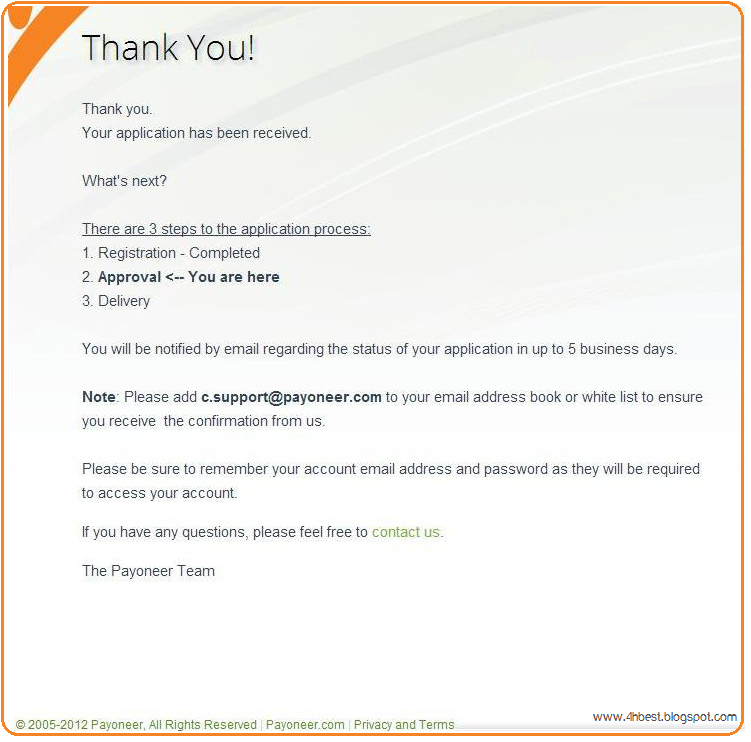
Step 7: In 2-3 Days, you will get two Emails, First look like this, Click on Account Login Button and see your Account. In Step 3 You will get a date of getting your Payoneer card. For estimation you will get your card in 25 to 30 days
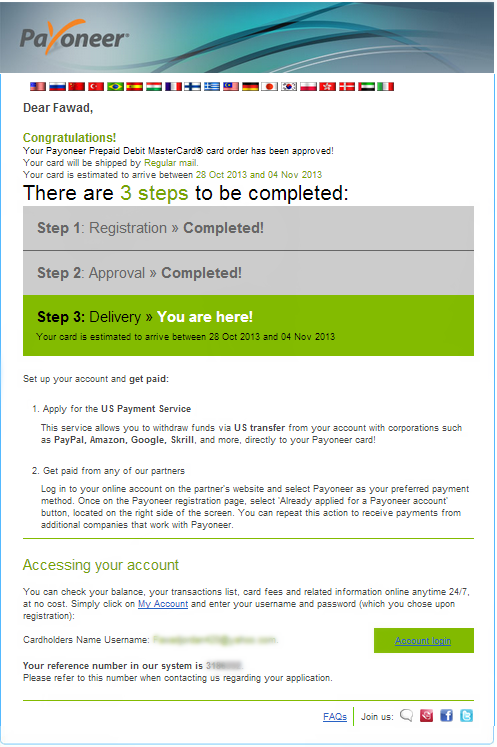
Step 8: In Second Email, it will asked you to enter your personal details look like in the image below:
1. To Complete the US Payment Service
2. Copy of your government-issued photo ID
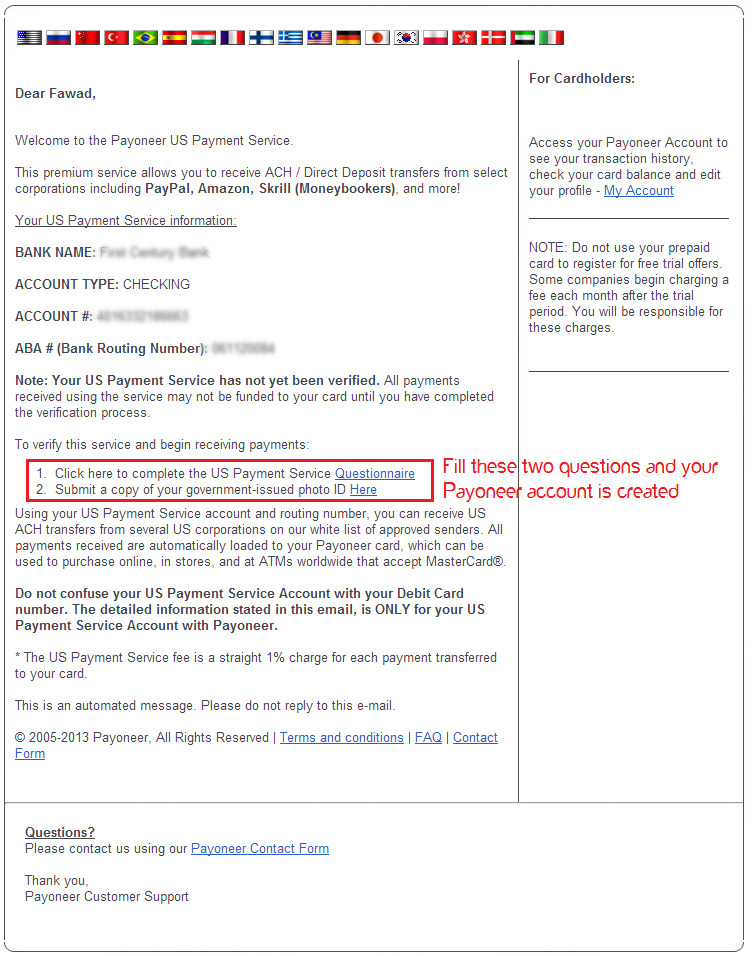
Note: Your Card will be shiped to your house in 25 to 30 Days......!
WARNINGS and Tips:
1. Use this card in ATM machines having MasterCard™ sign. Always remember Faysal Bank.
2. Don’t insert your card in machine if it doesn’t have funds or you card is not activated. Otherwise you card may be hanged on machine.
3. Always remember each time you insert your card in ATM, charges will be applied.
4. Try to withdraw amount once in a month.
5. Keep your card in safe place. Damage magnetic strip will make it useless.
6. Don’t tell anybody the PIN number of your card.
Wednesday, February 11, 2015
HowTo Install WinRAR in Fedora 18
download RAR 4.20 for Linux x64
or you may get this at http://www.rarlab.com/download.htm
Step2:
open your file browser and go to your Downloads folder
extract rarlinux-x64-4.2.0.tar.gz
this will create a rar folder
Step3:
open a terminal and type
su -
cd /home/**username**/Downloads/rar
make
make install
How To Use:
Nautilus File Browser
a) you can now start un-rar-ing things by right clicking on them and press on extract**
Terminal
a) to extract files to the directory you are currently at
unrar e file.rar
b) to extract files to the Desktop
unrar e file.rar /home/user/Desktop
Wednesday, January 28, 2015
How to remove your password pattern lock and gmail in i8150 Galaxy Wonder
It is another day another tutorial to you my followers :). This one is for Samsung Galaxy i8150. Well Samsung is one easiest phone to perform a hard reset. Every procedure has the same combination.
As ive always say always back up your data, if possible before doing a hard reset if you data is important. Because that my responsibility, I only tutorial. Ok. Without further ado. Check out the procedure below.
Just follow the instruction below.
1. Press and hold VOLUME UP + Home Button + Power Button.
2. As soon as the SAMSUNG logo appear unhold the POWER Button ONLY, keep holding VOLUME UP and HOME Button

3. An Android Logo Will Appear, press the MENU button and the lights will DIM. Just wait until Android System Recovery will appear

4. Select wipe data/factory reset, to navigate Press the VOLUME rocker, To Select Press the HOME Button.
5. Then finally reboot your phone.
NOTE: If the password or pattern lock is not removed after hard resetting try wiping the cache first in the android system recovery, then perform hard reset.
I hope you like this tutorial. A simple thank you in the comment box will suffice. Stay tuned for more tutorial and firmwares to be uploaded.